Filesystem
The Linux filesystem directory structure follows the Filesystem Hierarchy Standard (FHS), where every directory has a specific purpose.
Common directories
The following table describes common directories. Run man hier for a complete reference.
| Directory | Description |
|---|---|
| / | Beginning of the fs |
| /etc | System-wide application configuration |
| /home | User home directories |
| /root | Home directory for root |
| /media | Removable media, i.e. flash drives |
| /mnt | Volumes that will be mounted for a while |
| /opt | Additional software packages |
| /bin | Essential user libraries such as cp, ls, etc… |
| /proc | Virtual filesystem for OS-level components such as running processes |
| /usr/bin | Common user commands that are not needed to boot or repair the system |
| /usr/lib | Object libraries |
| /var/log | Log files |
Distro info
To view full distribution details, read the os-release file:
cat /etc/os-release
PRETTY_NAME="Ubuntu 24.04.1 LTS"
NAME="Ubuntu"
VERSION_ID="24.04"
VERSION="24.04.1 LTS (Noble Numbat)"
VERSION_CODENAME=noble
ID=ubuntu
ID_LIKE=debian
HOME_URL="https://www.ubuntu.com/"
SUPPORT_URL="https://help.ubuntu.com/"
BUG_REPORT_URL="https://bugs.launchpad.net/ubuntu/"
PRIVACY_POLICY_URL="https://www.ubuntu.com/legal/terms-and-policies/privacy-policy"
UBUNTU_CODENAME=noble
LOGO=ubuntu-logo
To view a shorter summary, run lsb_release:
lsb_release -a
No LSB modules are available.
Distributor ID:	Ubuntu
Description:	Ubuntu 24.04.1 LTS
Release:	24.04
Codename:	noble
Viewing log files
/var/log/syslog contains information about background processes, warnings, and errors. When troubleshooting, check syslog first and search for the error message to find a resolution.
To view the first 100 lines:
head -n 100 /var/log/syslog
head -100 /var/log/syslog
To view the last 100 lines:
tail -n 100 /var/log/syslog
tail -100 /var/log/syslog
To watch syslog output in real time:
tail -f /var/log/syslog
View supported filesystems
To list the filesystems the kernel currently supports:
cat /proc/filesystems
nodev	sysfs
nodev	tmpfs
...
nodev	devpts
	ext3
	ext2
	ext4
	squashfs
	vfat
...
Elements of a file system
A filesystem is an organization of data and metadata on a storage device. Linux filesystems share a common API that lets the kernel work with any filesystem type (such as ext4) on any storage medium (such as SATA). The Linux filesystem is implemented in layers to separate the user interface from the implementation and from the drivers that communicate with storage devices. ext4 creates one inode for each 16 KB of filesystem capacity.
Mounting
Mounting attaches a separate filesystem to the current filesystem hierarchy. You mount a filesystem that resides on a partition, not a hard drive directly. The filesystem is an abstraction on top of the data stored on the partition.
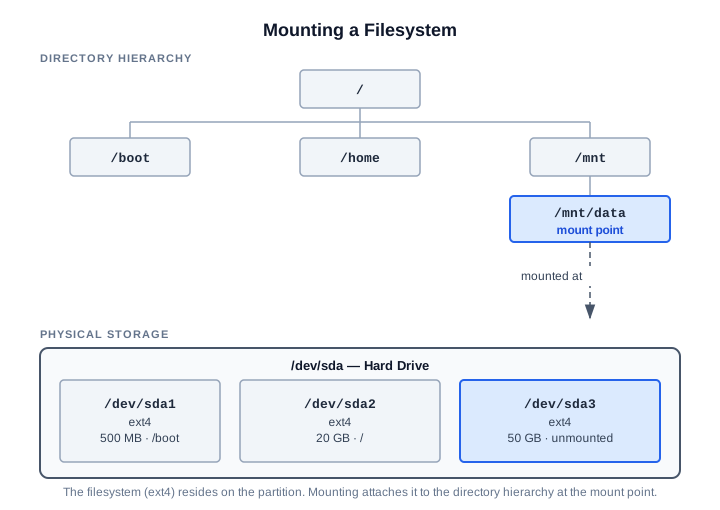
The losetup command associates a loop device with a file, making it appear to the system as a block device:
losetup /dev/loop0 file.img
After you make the file appear as a block device, you can format it with a filesystem.
High-level architecture
The GNU C library (glibc) runs in user space and provides the interface for system calls such as open, read, write, and close. Those calls cross into kernel space, where the Virtual File System (VFS) abstracts them to make them compatible with the underlying filesystem. Each filesystem attached to the system exposes a set of interfaces the VFS expects and maintains an inode cache and a dentry (directory entry) cache that stores recently used filesystem objects.
A buffer cache sits below the filesystem layer and stores recent read and write requests so the system can retrieve data without reading from the physical device. Flush the buffer cache with the sync command to force all unwritten data through the device driver to the device.
Major structures
- superblock
- describes and maintains state of the fs
- inode
- an inode for each fs object, it contains metadata to manage the object
- dentries
- uses the directory cache to map names to inodes, and maintains relationships between dirs and files so you can traverse the fs
- files
- VFS maintains the state of open files such as the write offset
VFS layer
The VFS tracks the filesystems currently supported by the kernel and those currently mounted. Registered filesystems are visible in /proc/filesystems. A filesystem registers itself with the kernel using the register_filesystem function. The VFS tracks mounted filesystems using the vfsmount struct.
Superblock
The superblock is a structure typically stored on the storage medium that holds all information about the filesystem:
- Filesystem name (such as ext4)
- Total size
- Reference to the block device
- Metadata
The superblock also contains a set of operations implemented as a struct that holds functions for managing inodes, satisfying the interface the VFS layer expects.
inode and dentry
An inode is a filesystem object with a unique identifier. It exposes methods for working on the inode itself and for system calls that operate on files and directories. The inode cache and dentry cache store the most recently used inodes and dentries. Each inode in the cache has a corresponding dentry in the cache.
Buffer cache
The buffer cache sits at the bottom of the filesystem layer. It tracks read and write requests between individual filesystems and the device drivers and stores the most recently used pages so the requesting filesystem can retrieve data quickly.
inodes
A file is a filename paired with an inode number. The inode points to file data on disk. A directory struct contains a file’s inode, name, and length of name.
The inode sits in the VFS layer between the filename and the file’s data on disk. Every file points to an inode, and every inode points to a disk block containing the associated data. Hard links occur when two files share the same inode and point to the same data on disk. Inodes track permissions, ownership, and date metadata. You cannot add more inodes after installing the filesystem.
View inode number
To view the inode number assigned to a file, pass the -i flag to ls:
ls -i greptest.txt
131551 greptest.txt
View file metadata
stat displays full file metadata, including the inode number, permissions, ownership, and timestamps:
stat greptest.txt
  File: greptest.txt
  Size: 82            Blocks: 8          IO Block: 4096   regular file
Device: 252,0    Inode: 131551      Links: 1
Access: (0664/-rw-rw-r--)  Uid: ( 1000/linuxuser)   Gid: ( 1000/linuxuser)
Access: 2024-12-13 11:25:45.069716490 -0500
Modify: 2024-12-13 11:25:39.722707145 -0500
Change: 2024-12-14 16:59:53.434398357 -0500
 Birth: 2024-12-13 11:25:39.721707144 -0500
Check inode availability
To monitor inode usage and ensure the filesystem does not run out, check availability system-wide or per partition:
df -hi
Filesystem                        Inodes IUsed IFree IUse% Mounted on
tmpfs                               993K   823  992K    1% /run
/dev/mapper/ubuntu--vg-ubuntu--lv   736K  139K  598K   19% /
...

df -i /dev/mapper/ubuntu--vg-ubuntu--lv
Filesystem                        Inodes  IUsed  IFree IUse% Mounted on
/dev/mapper/ubuntu--vg-ubuntu--lv 753664 141940 611724   19% /
Check block size
To confirm the block size the filesystem uses and audit space consumption at that granularity:
blockdev --getbsz /dev/mapper/ubuntu--vg-ubuntu--lv
4096

df -B 4096 /dev/mapper/ubuntu--vg-ubuntu--lv
Filesystem                        4K-blocks   Used Available Use% Mounted on
/dev/mapper/ubuntu--vg-ubuntu--lv   2939690 892182   1892731  33% /
Inspect an inode
debugfs reads low-level inode data directly from the filesystem. Pass an inode number to see its full metadata, including block offsets on disk:
debugfs -R "stat <inode>" <filesystem>
debugfs -R "stat <263700>" /dev/mapper/ubuntu--vg-ubuntu--lv
Inode: 263700   Type: regular    Mode:  0644   Flags: 0x80000
Generation: 1397416079    Version: 0x00000000:00000001
User:  1000   Group:  1000   Project:     0   Size: 18
File ACL: 0
Links: 1   Blockcount: 8
Fragment:  Address: 0    Number: 0    Size: 0
 ctime: 0x67644365:e3260cc4 -- Thu Dec 19 11:01:41 2024
 atime: 0x67644365:e3260cc4 -- Thu Dec 19 11:01:41 2024
 mtime: 0x67644365:e3260cc4 -- Thu Dec 19 11:01:41 2024
crtime: 0x67644365:e3260cc4 -- Thu Dec 19 11:01:41 2024
Size of extra inode fields: 32
Inode checksum: 0x0a68b9d2
EXTENTS:
(0):2189145                                                     # disk block offset
Pinpoint commands
These commands locate files, confirm whether a program is installed, find a configuration file, or browse documentation.
which
which shows the full path of a shell command and indicates whether it resolves to an alias.
The following examples show results for a utility, a system binary, and a command not found on the system:
# utility
which diff
/usr/bin/diff

# system binary
which shutdown
/usr/sbin/shutdown

# not in system
which line
whereis
whereis locates the binary, source code files, and man pages for a command.
The following examples show results for a utility, a system binary, and a command not found on the system:
# utility
whereis diff
diff: /usr/bin/diff /usr/share/man/man1/diff.1.gz

# system binary
whereis shutdown
shutdown: /usr/sbin/shutdown /usr/share/man/man8/shutdown.8.gz /usr/share/man/man2/shutdown.2.gz

# not in system
whereis line
line:
locate
locate searches the mlocate.db database in /var/lib/mlocate/ to find files on the system. It is faster than find because it queries an index rather than scanning the filesystem directly. The index is typically updated once a day by a cron job, so locate may not find files created since the last update. Run updatedb to refresh the index manually before searching.
The following reference covers common options:
locate [OPTION]... PATTERN...
-A    # match all patterns in pattern list
-b    # match filenames only, not directory names
-c    # display count of matching files
-i    # ignore case
-q    # suppress error messages
-r    # use a regex instead of a pattern list
-w    # match full path, including directories
Search for multiple patterns
Separate multiple patterns with a space. The following example finds files matching both passwd and group:
locate -b '\passwd' '\group'
/snap/core22/1033/usr/share/doc-base/base-passwd.users-and-groups
/usr/share/doc-base/base-passwd.users-and-groups
Locate a file
To search for a specific file by name:
locate file.1
Update the index
To refresh the database before searching for recently created files:
updatedb
lsof
lsof lists open files by reading from the /proc virtual filesystem. It is useful for identifying which process holds a file, socket, or port open.
lsof /run           # what process is using /run
lsof -p 932         # what process is using process 932
lsof -u linuxuser   # what files linuxuser has open
lsof -i TCP:22      # what TCP process is using port 22
fuser
fuser identifies the user and process ID (PID) of the process that has a file open. It is useful when you need to close or terminate a process before unmounting a filesystem or deleting a file.
# find user and PID for process
fuser -v /var/log/bad.log
                     USER        PID ACCESS COMMAND
/var/log/bad.log:    admin       586 F.... badlog.py
losetup
losetup sets up and controls loop devices. It associates a regular file with a loop device, making the file appear to the system as a block device. This is useful for testing filesystem operations without a physical disk.
The following examples show how to attach, detach, and list loop devices:
losetup /dev/loop0 file.img         # associate file with loop device
losetup -d /dev/loop0               # detach loop device from file

# list all attached loop devices
losetup -a
/dev/loop0: []: (/home/linuxuser/links/file.img)
find
find locates files by searching the filesystem directly using data and metadata, including file owner, last modified date, and permissions. Specify a starting path and find searches that entire directory tree. Results are written to STDOUT and filtered by the executing user’s permissions.
| Option | Expression | Description |
|---|---|---|
-cmin | n | Display names of files that changed n mins ago |
-empty | Display empty files or dirs | |
-gid | n | Display files whose group id is n |
-group | name | Display files in group name |
-iname | pattern | Case-insensitive names of files that match pattern |
-inum | n | Display files with inode |
-maxdepth | n | Search n directory levels |
-mmin | n | Files whose data changed n mins ago |
-mtime | n | Files whose data changed n days ago |
-name | pattern | Names of files that match pattern |
-nogroup | No group name exists for the file’s group ID | |
-nouser | No username exists for the file’s user ID | |
-perm | mode | Files whose permissions match mode |
-size | n | Files whose size matches n |
-user | name | Files whose owner is name |
-xdev | Search within a single filesystem |
Syntax
find [PATH...] [OPTION] [EXPRESSION]

# actions on results
-delete                 # delete matching files or dirs
-exec <command> {} \;   # run <command> on each result
-ok <command>           # same as -exec but prompts before each execution
-exec
-exec runs a command on every file find returns. The {} placeholder represents each matched file and \; terminates the command. Use -ok instead of -exec to prompt for confirmation before each execution.
find [PATH...] [OPTION] [EXPRESSION] -exec [COMMAND] {} \;
Find largest and smallest files
To sort all files in $HOME by size and return the top five largest or smallest:
find $HOME -type f -exec ls -s {} \; | sort -rn | head -5     # 5 largest files
find $HOME -type f -exec ls -s {} \; | sort -n | head -5      # 5 smallest files
Change permissions on matching files
To find files with overly permissive settings and reset them to a safer mode:
find find-files/ -type f -perm 777 -exec chmod 644 {} \;
Search file contents
To search every matching log file for a specific string:
find /var/ -type f -name '*.log' -exec grep -i 'error' {} \;
Copy matching files
To copy all matching files into a destination directory:
find $HOME -iname "*.1*" -exec cp {} find-files/ \;
Add matching files to an archive
To append all matching files into a tar archive:
find $HOME -iname "*.1*" -exec tar -rvf find-files/find.tar {} \;
Search by name
To find files by name or extension, use -name for exact case and -iname for case-insensitive matching:
find . -name "*.txt"
./numbers.txt
./random.txt

find . -maxdepth 2 -name "*.txt"

find Development/ -type f -name *.go       # files ending in '.go'
find /var/log -type f -name *.log          # files ending in '.log'
find /var/log -type f -iname '*s.LoG'      # case-insensitive match
Search by type
To filter results by file or directory type:
find . -type d                  # all dirs in cwd
find . -type f                  # all files in cwd
find ~/Downloads/ -type f       # all files in /Downloads
find ~/Downloads/ -type d       # all dirs in /Downloads
find $HOME -type f,d            # all files and dirs in $HOME
Search multiple directories
To search across more than one directory in a single command:
find Development/ /var/log -type f -name '*.log'
Exclude files or directories
To omit files or paths from results, use -not:
find test-files/ -type f -not -name '*.1'
find Development/ -type f -not -path '*/lets-go/*'
Search by permission
To find files with specific permissions, including SUID and SGID binaries:
find /home -type f -perm 0644
find $HOME -type f -name ".*"               # hidden files
find / -maxdepth 2 -type d -name bin

find / -perm /g=s                           # SGID files
find / -perm -2000                          # SGID files
find / -perm /u=s                           # SUID files
find / -perm -4000                          # SUID files
find / -type f -perm -110                   # executable by user and group

find /usr/bin/ -perm /4000
/usr/bin/fusermount3
/usr/bin/passwd
/usr/bin/mount
...
Search by ownership
To find files by user or group ownership, including orphaned files with no owner:
find $HOME -user linuxuser
find / -group linuxuser
find / -nouser                              # orphaned files
find $HOME -user u1 -o -user u2            # owned by u1 or u2
find / -not -user linuxuser
Search by size
To find files above, below, or at an exact size:
find $HOME -size 10M                        # exact size
find $HOME -size +10M                       # greater than
find $HOME -size -10M                       # less than
find / -xdev -size +100M 2>/dev/null        # restrict to specified filesystem
Search by time
To find files based on when they were last modified or accessed:
find / -mtime 4 2>/dev/null                 # modified 4 days ago
find / -atime 5 2>/dev/null                 # accessed 5 days ago
Find empty files and directories
To locate files or directories with no content:
find $HOME -type f -empty
find $HOME -type f -size 0
find $HOME -type d -empty
Delete matching files
To find and immediately delete matching files, append -delete:
find find-files/ -type f -name '*.mp4' -delete